
Minecraft Pixel Art Designer
Draw your build on a block grid before you place a single block: real wool, concrete and terracotta colors, numbered rows and columns and a block list in stacks of 64.
Pick a color, then click or drag on the grid. Fill paints a whole area; Ctrl+Z undoes.
Materials
| # | Color | Code | Name | Count |
|---|
Screen colors are approximate. Check tricky shades against your real beads or yarn.
Start from a template
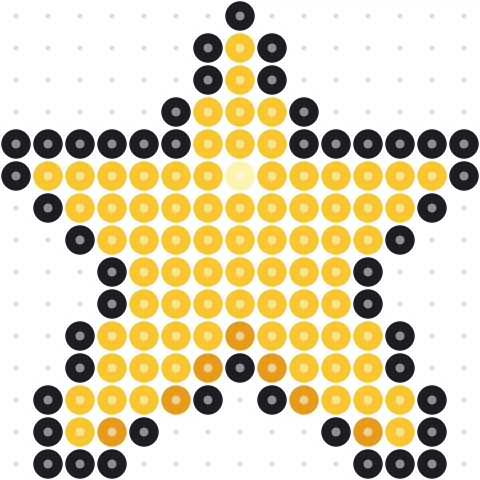
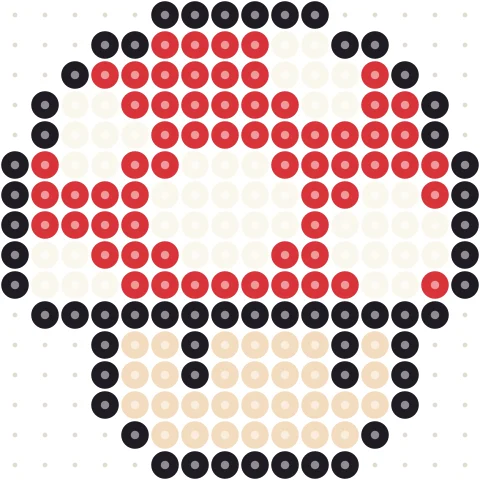
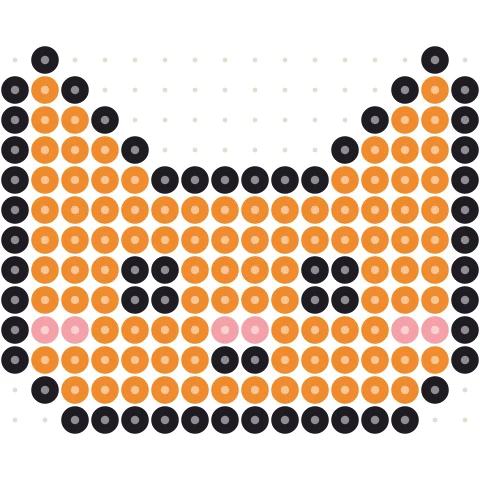
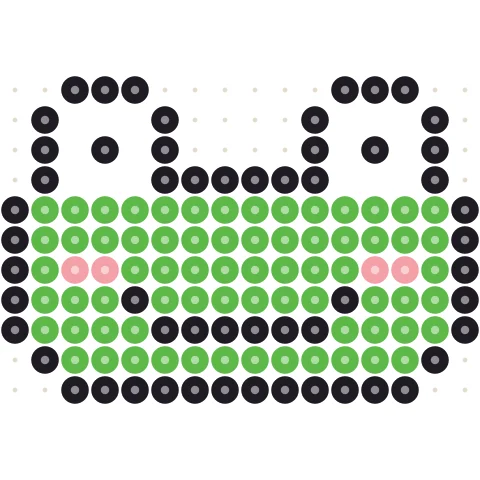
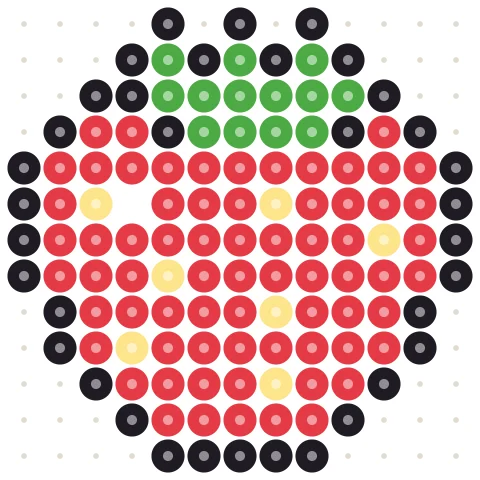
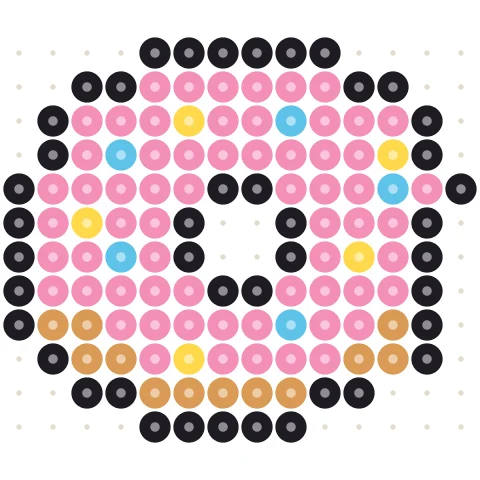
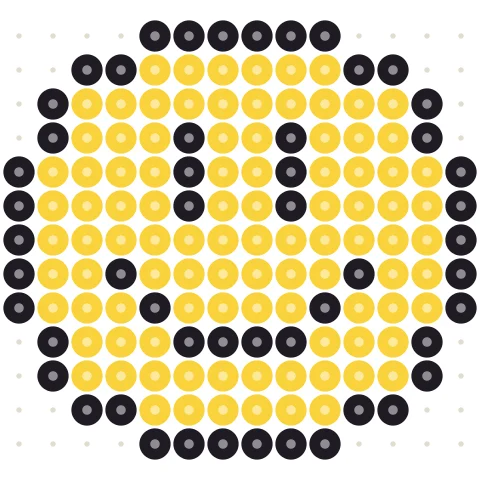
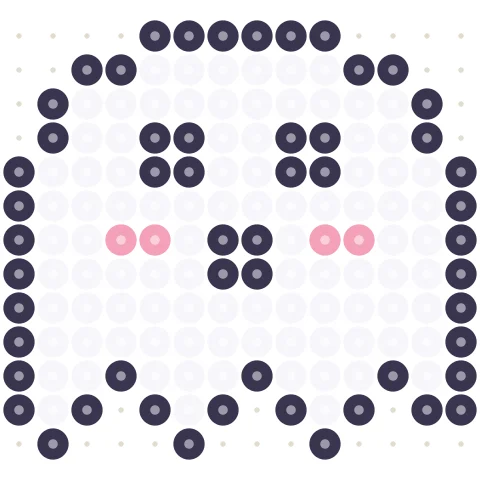
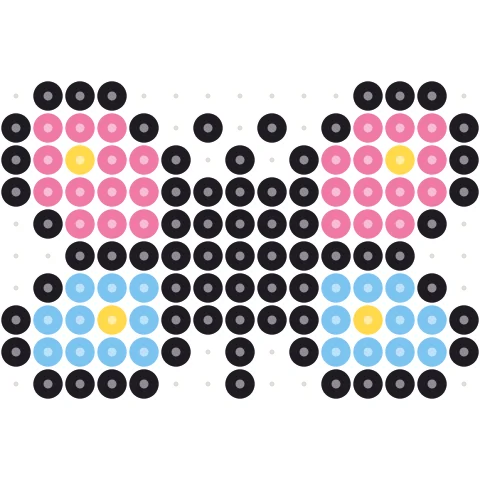
Click a pattern to load it into the designer above, then change anything you like.



Plan a Minecraft build in three steps
-
Set the size
Choose the width and height in blocks. Sizes in multiples of 16 line up with Minecraft chunks.
-
Draw with blocks
Pick wool, concrete or terracotta and paint block by block, or fill whole areas.
-
Gather and build
Collect the blocks from the list, then build from the bottom row up using the numbered grid.
A grid planner made for block art
48 colored blocks
All 16 colors of wool, concrete and terracotta, named the way they appear in game.
Stacks of 64
Every block count is shown in full stacks plus the rest, so gathering is easy.
Numbered grid
Every row and column is numbered, so you can keep your place while building.
Any size
From small 16-block icons to 256-block murals.
Start from a pattern
Open any design from the gallery and adjust it for your world.
Printable plan
Print the plan in pages with the block list on the first page.
Tips for designing Minecraft pixel art
Planning on a grid first saves a lot of breaking and replacing in game, especially in survival where every block has to be gathered.
Choose the block family
Concrete gives the cleanest, brightest colors; terracotta adds muted tones for shading; wool is the easiest to dye in early survival. Mixing all three gives the widest palette.
Plan the size around chunks
Keeping a build inside whole chunks (multiples of 16) makes it easier to line up and to load. Large murals look best viewed from at least as far away as they are wide.
Starting from a picture? Use the Minecraft pixel art generator. For round shapes use the circle generator.
Not an official Minecraft product. Not approved by or associated with Mojang or Microsoft.
Minecraft pixel art designer questions
How do I plan Minecraft pixel art?
Set the size in blocks above, choose a block palette and paint on the grid. The block list shows exactly what to gather, in stacks of 64.
Which blocks can I use?
Wool, concrete and terracotta in all 16 colors, either together or one family at a time.
Can I turn a picture into a plan?
Yes, use the Minecraft pixel art generator, then fine-tune it here.
Does it work for Java and Bedrock?
Yes. All the blocks exist in both editions with the same colors.
More free pattern makers
Minecraft Pixel Art Generator
Image to Minecraft block art with wool, concrete and terracotta counts.
MinecraftMinecraft Circle Generator
Pixel circles and ovals block by block, with row counts.
MinecraftMinecraft Sphere Generator
Build domes and spheres layer by layer, hollow or solid.
BeadsPerler Bead Pattern Maker
Photo to Perler, Hama, Artkal or MARD bead pattern with bead counts.
Pixel artPixel Art Converter
Turn any image into pixel art with a grid, color limits and dithering.
CrochetTapestry Crochet Pattern Maker
Image to tapestry crochet graph with row-by-row color changes.